app
To access the reading rooms you need to
- Book a seat through the app (the booking must always be validated with the QR code at the reception desk), either via web or on your mobile phone
- Leave bags and backpacks in the luggage lockers, handing over a valid identity document (identity card, driving licence, passport, residence permit, university booklet, or any document with a readable name), excluding the health card and Metrebus or Erasmus cards. Staff who are not responsible for custody may open and/or empty the lockers when needed for operational reasons
AFFLUENCES app to download on your phone
IPHONE / IPAD Apple
oppure TABLET / SMARTPHONE Anroid
| The library recommends not leaving valuables unattended in the reading rooms (laptop, tablet, mobile phone, etc.). The library declines all responsibility in case of theft or loss. |
Inside the library you may not:
- bring any material that could damage the library’s collections (e.g. food and drinks, glue, scissors, blades or other sharp objects)
- disturb the quiet in any way (e.g. talking on the phone, speaking loudly, forming study groups)
- smoke, including electronic cigarettes (the offence is punishable by law)
How to use the app
The app can be used via web or on your phone: IPHONE / IPAD (Apple) or TABLET / SMARTPHONE Anroid
To log in to the app, use your institutional address as your credentials (@uniroma2.eu, @uniroma2.it, @students.uniroma2.eu, @alumni.uniroma2.it, cloudsa.uniroma2.it; @uniroma1.it; @uniroma3.it; @uniroma4.it).
Anyone who has booked a seat but can no longer come to the library is asked to cancel the booking so that the seat can be made available to others.
How to book a seat
You can choose from several time slots within a day:
- slots start at 9:00, 11:00, 13:00, 15:00, 17:00 and 19:00
- slot durations: 2 hours, 4 hours or 6 hours
- the minimum booking is 2 hours, but with a single selection you can reserve up to a maximum of 6 hours. This can be repeated for the same seat on the same day.
- For example: you can book from 9 to 11, or in one go from 9 to 13, or from 9 to 15.
- if you plan to stay even longer, you can repeat the booking from 15 to 17, or in one go from 15 to 19.
- for a single-hour booking, you can cancel it yourself through the app up to one minute before the chosen start time
- if a booking is not validated, it will be automatically cancelled at the end of the first hour
- if you want to cancel a multi-hour booking because you can no longer come to the library, you can cancel it yourself until the end of the first hour.
- For example: you booked from 9 to 15. If you do not validate your presence by 9:59, the booking will be automatically cancelled at 10:00. You can also cancel the booking yourself by 9:59.
- if you need to leave the library early, you can shorten the booking up to the last booked hour.
- For example: if you book for 2 hours, from 9 to 11, you can shorten it yourself until 9:59. In this way the seat will be made available to another user from 10:00.
- the 3 dedicated workstations for Assonime, FactSet Academic and Morningstar can be used by booking through the APP affluences.com
Seat occupancy in the library (real time)
PC AREA

Orario di apertura: lunedì - venerdì dalle 9.00 alle 20.00
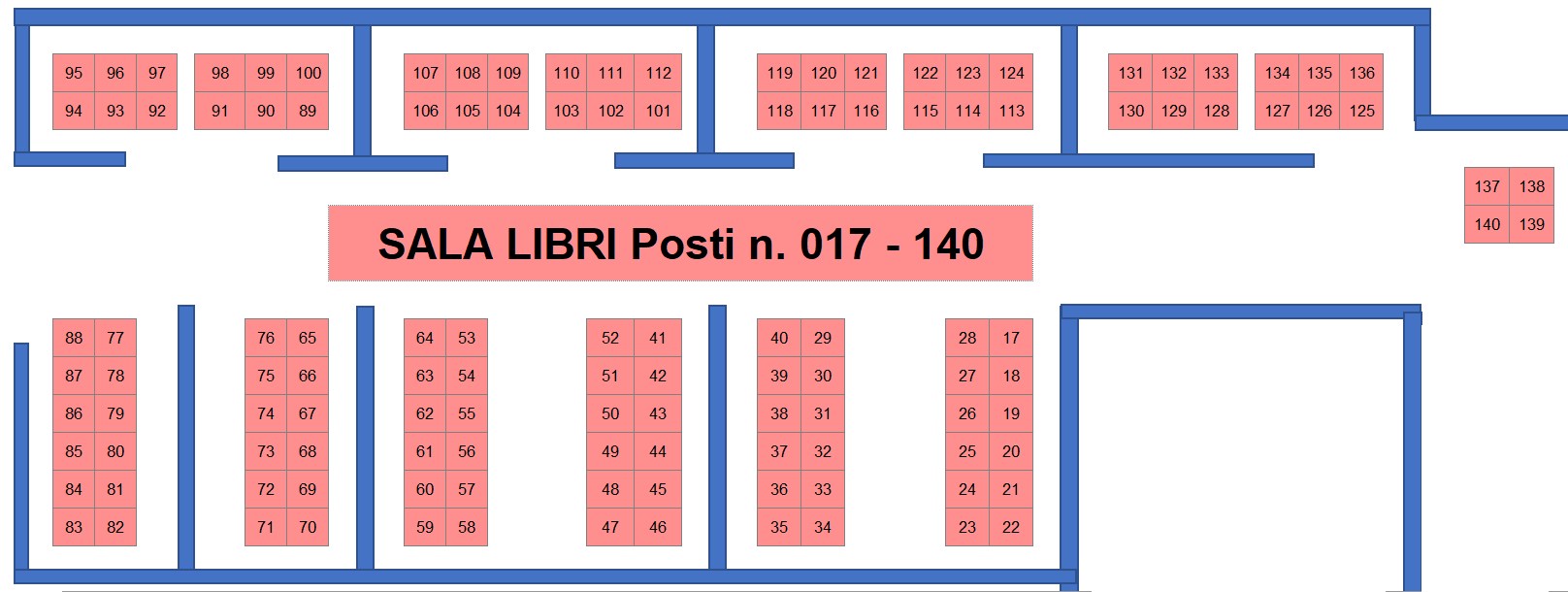
BOOKS ROOM
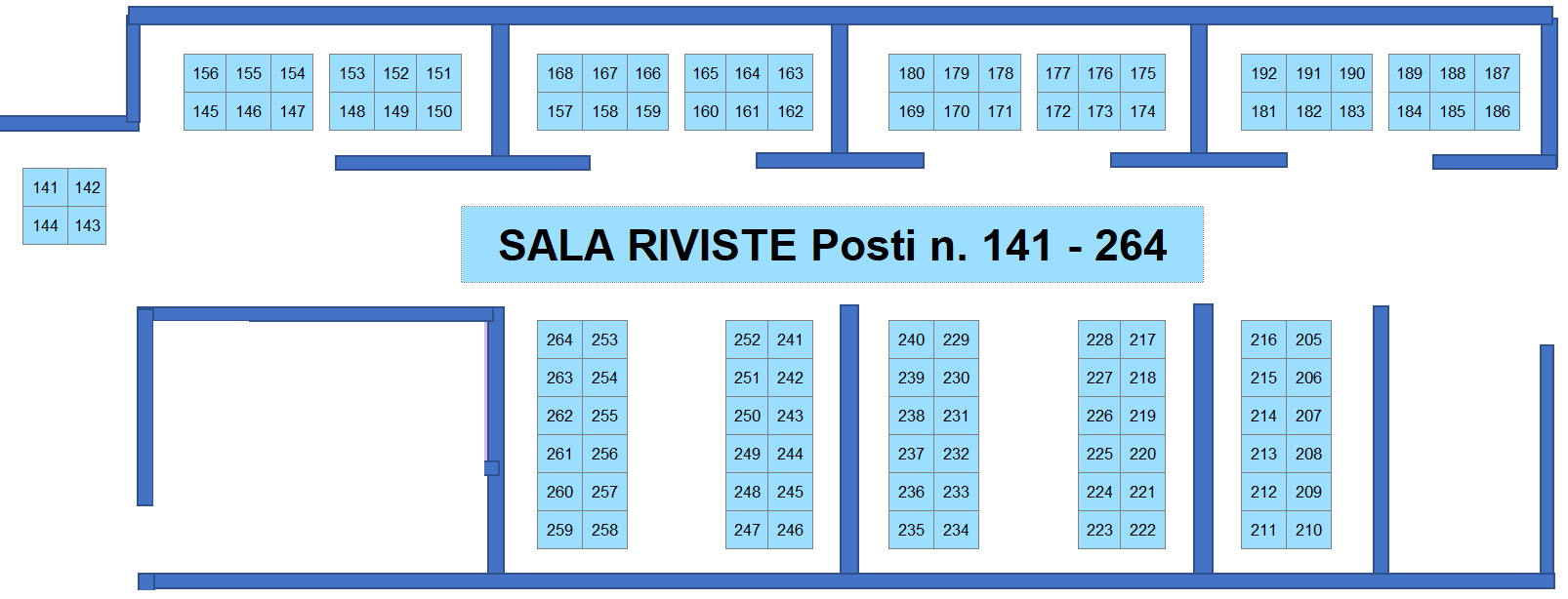
JOURNAL ROOM
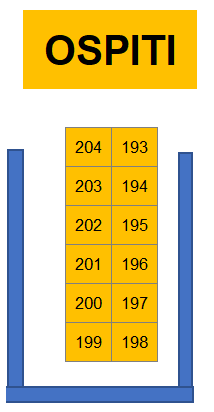
GUESTS AREA